
Prerequisites
You must already have Full Access permissions to the shared mailbox (assigned by your IT administrator, please contact Help Desk or request via provisioning ticket).
You must have your primary Park email address (
ParkID@park.edu) and your Park password ready.
Step-by-Step Instructions
Step 1: Open Outlook Account Settings
Open Microsoft Outlook 2019 on your desktop.
In the top-left corner, click on the File tab.
Click the Add Account button located directly above the Account Settings list.
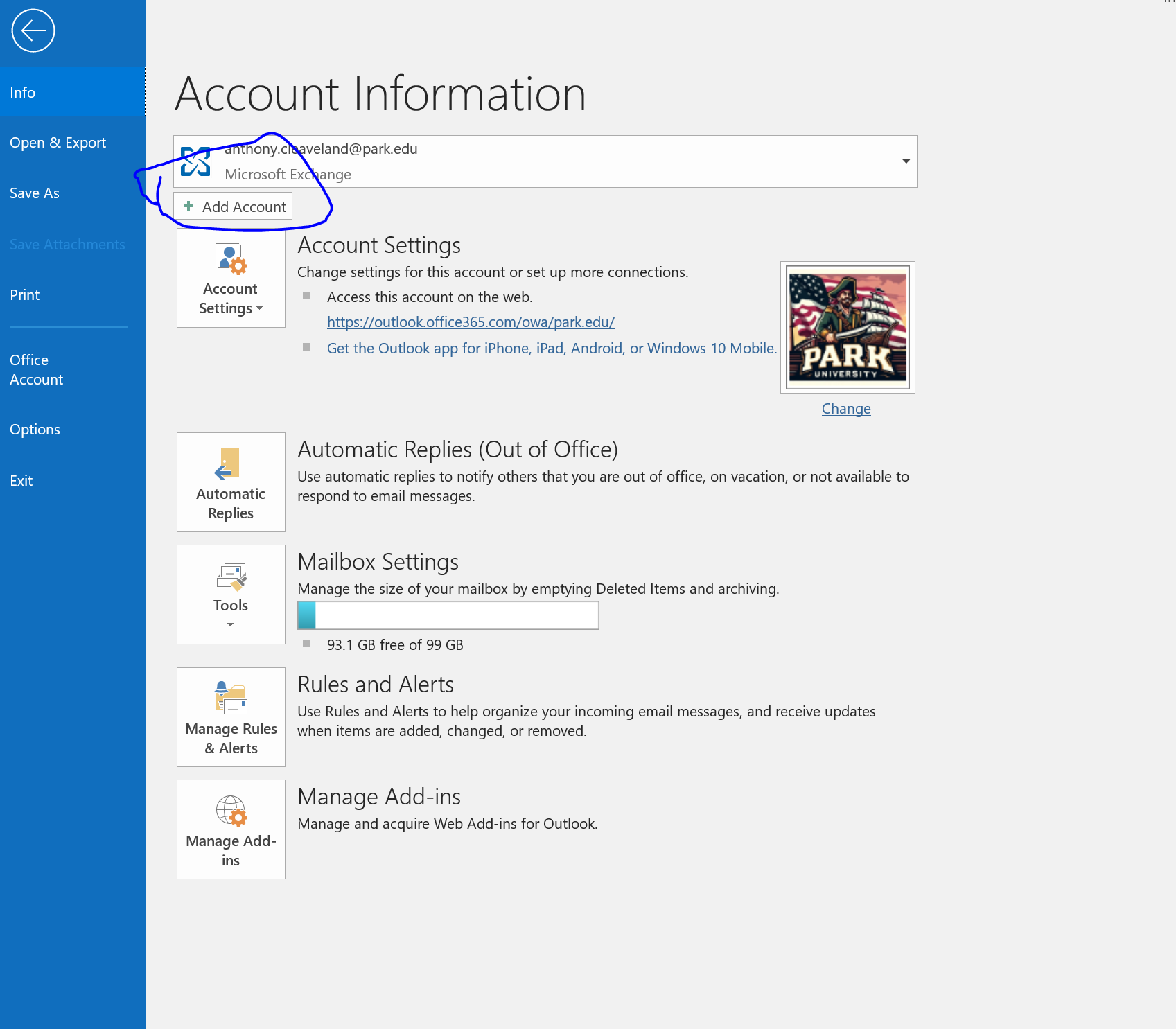
Step 2: Enter the Shared Mailbox Address
In the setup window that appears, enter the email address of the Shared Mailbox you wish to add (e.g.,
shared-mailbox@park.edu).Click Connect
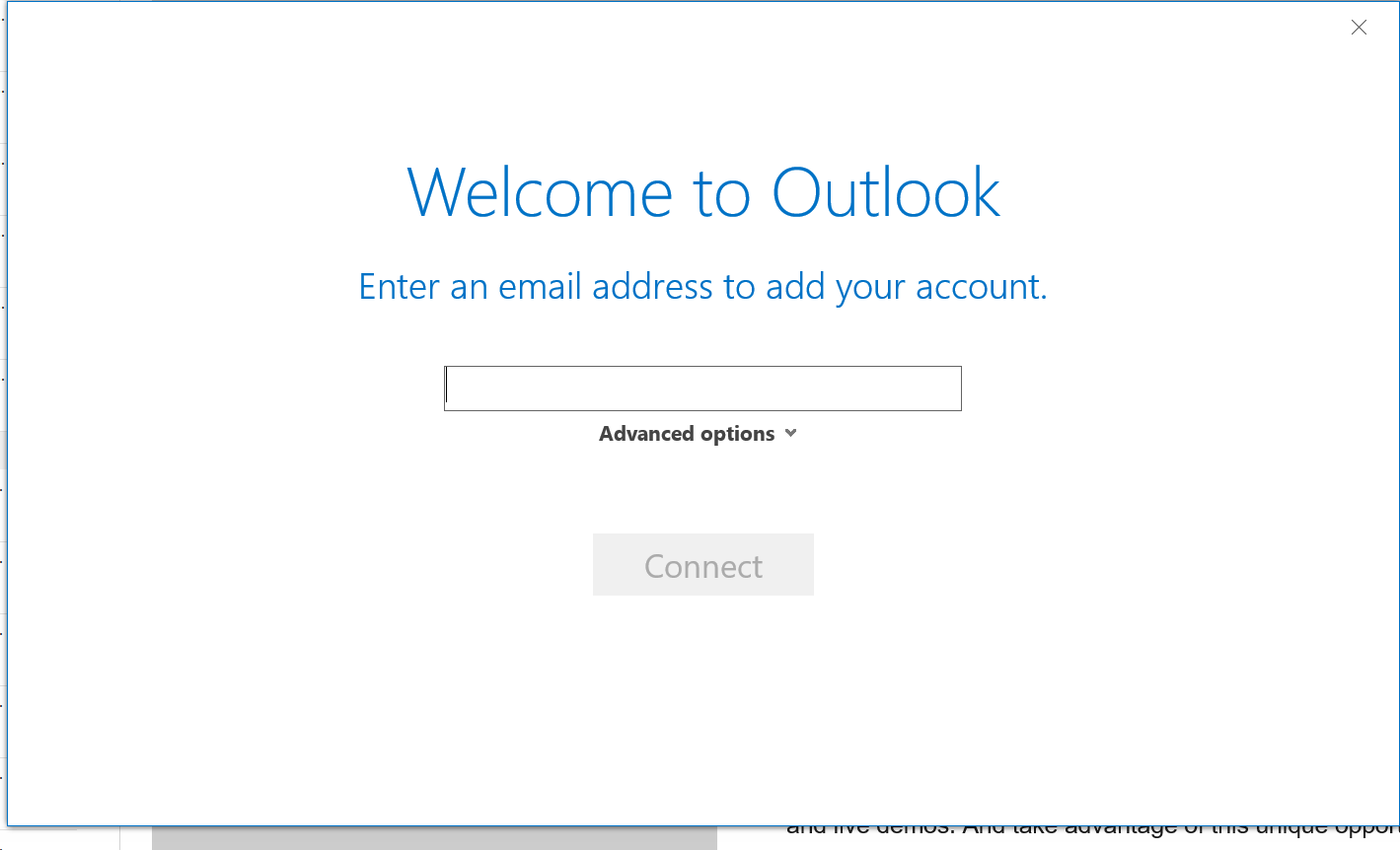
Step 3: Authenticate with Your Park Credentials
Outlook will attempt to connect and will present you with a Microsoft Sign-in / Windows Security prompt. Do not attempt to sign in with the shared mailbox credentials, as shared mailboxes do not have their own active passwords.
When the sign-in prompt appears, look at the pre-filled email address. If it shows the shared mailbox address, click Sign in with another account or Use a different account.
Change the username/email address to your personal
ParkID@park.educredentials.Enter your personal Park password.
Check the box to Remember my credentials if prompted, then click OK or Sign In.
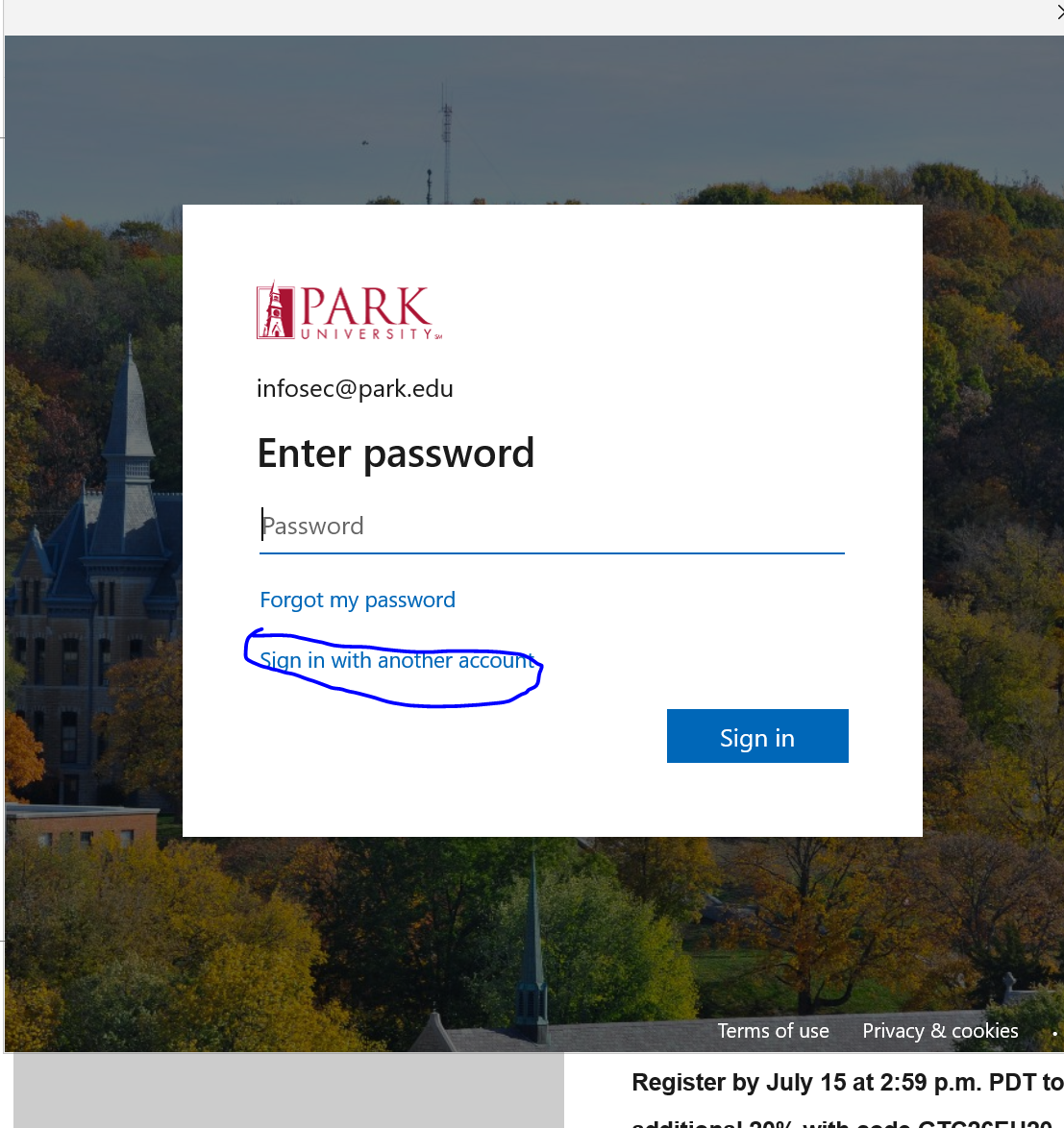
Step 4: Complete and Restart Outlook
Once Outlook successfully authenticates your permission, you will see a screen indicating that the account was successfully added.
Click Done or Finish.
Restart Outlook (close the application completely and open it again) for the changes to take effect.
Accessing Your Shared Mailbox
After Outlook restarts:
Look at the left-hand folder pane. The shared mailbox will now appear as a completely separate mailbox listing below your personal account.
You can now expand the folder list to view the shared Inbox, Sent Items, and Calendar.
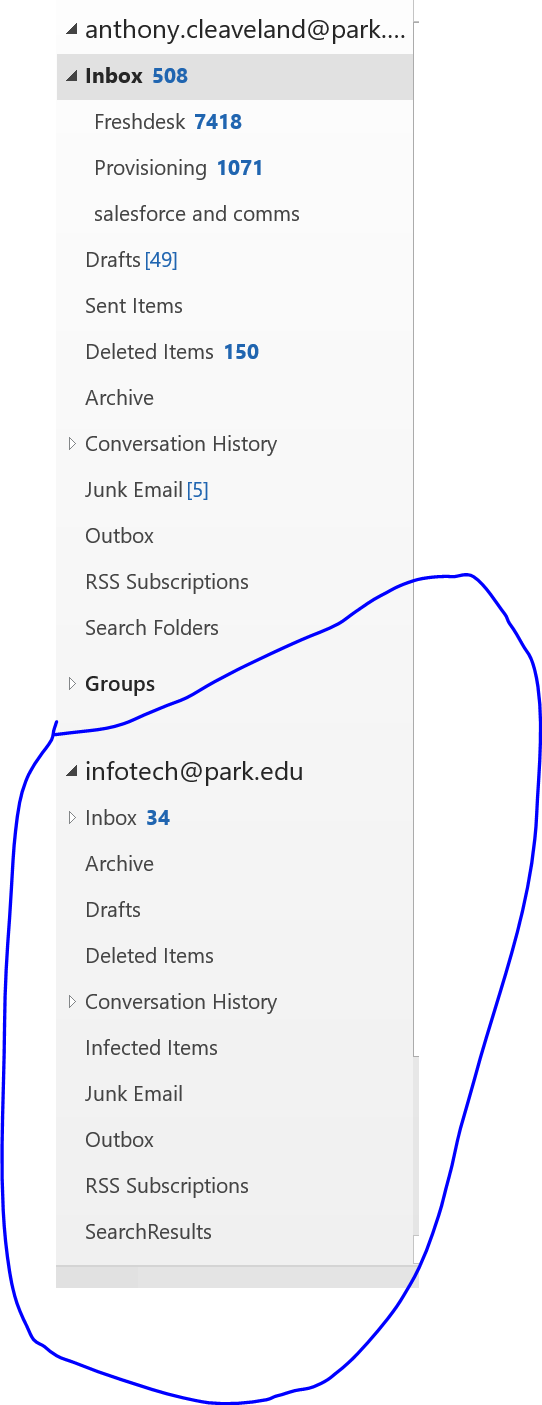
Frequently Asked Questions & Troubleshooting
Why am I signing in with my own ParkID@park.edu email?
Shared mailboxes are "shell" accounts. They do not have their own password or active licenses. Access is granted by linking your personal Park account permissions to the shared box. By signing in with your own credentials, Outlook checks the server to verify you are authorized to open it.
I get a "We're sorry, we couldn't set up your account" error.
If the process fails, it is usually because:
The IT administrator has only recently granted you access. It can take up to 30 to 60 minutes for Exchange server permissions to fully replicate. Please wait and try again.
There is a typo in the shared mailbox email address. Double-check the spelling and try again.