
This is a mere general step by step guide an end user can take to fix basic networking issues. For more advanced issues or if you still have issues after using this guide, reach out to Help Desk so we can contact Network Support.
1. Check basic ethernet cable connectivity
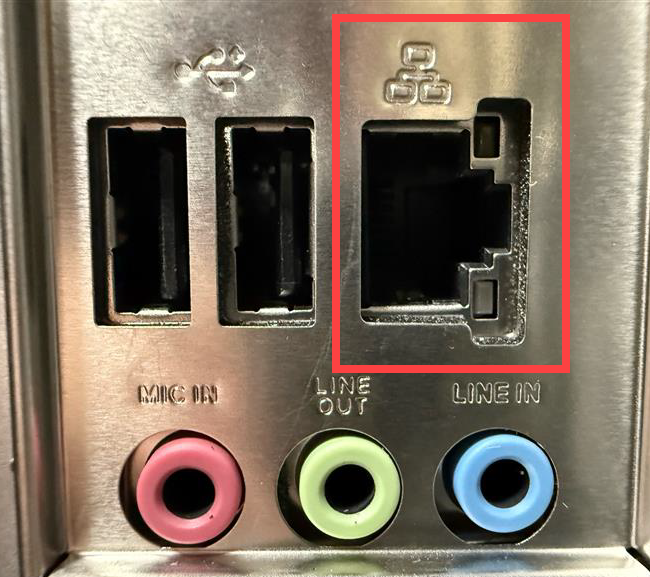
Check the Link Lights: Look at the Ethernet port on your computer and the router.
Solid/Flashing Green: Usually indicates a healthy connection and activity.
Amber/Orange: Often indicates a connection is established but at a lower speed (e.g., 100Mbps instead of 1Gbps).
No Light: The physical circuit is broken.
The "Unplug and Pray": Unplug the cable and plug it back in. You should feel or hear a distinct click.
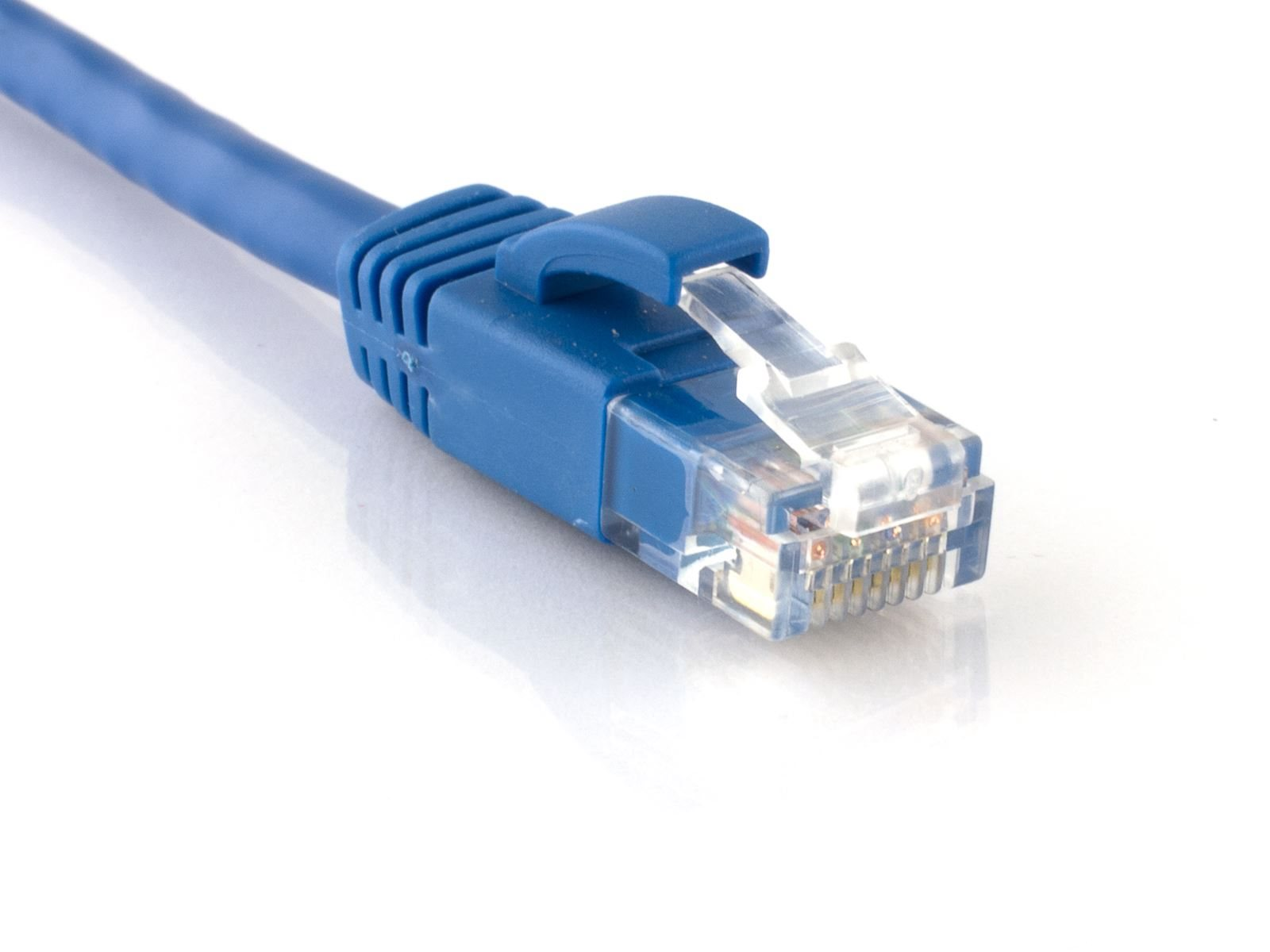
Swap the Cable: Ethernet cables (Cat5e/Cat6) can have internal breaks or faulty "teeth" in the plastic head that aren't visible to the eye.
Make sure the Ethernet cord is plugged into the computer/dock and into the wall port or Router if remote. If using dock, unplug dock for 45 seconds and plug it back in if ethernet cable is plugged into dock.
Step 2: Wifi
If on campus, please see this article:
https://support.park.edu/a/solutions/articles/6000169181?lang=en
If at home, you can use most steps of the article but your Network name and password will be different and whatever its configured to.
If you are remote, you can also try unplugging your home router or rebooting it. This can help with many issues related to your home network.
Step 3: Reboot
Rebooting helps with many intermittent issues if you dont regularly reboot.
Step 4: Advanced tips
If you feel confident as an advanced user, you can try these tips:
-Run CMD then use command ipconfig \flushdns
fixes random DNS errors
- Run CMD Ipconifg\release then ipconfig \renew
Releases IP leased by DHCP service and then requests a new one, can help fix IP address conflicts
DO NOT USE IN VIRTUAL OR ON CAMPUS, CONSULT TECH SUPPORT BEFORE USING