
This guide will walk you through connecting and playing music from a personal device (such as cell phone, tablet, or laptop) over the speakers in the Chapel.
You will need to go to the upper floor of the Chapel, into the balcony. The mixer from which you will connect is immediately inside the door on the right side.
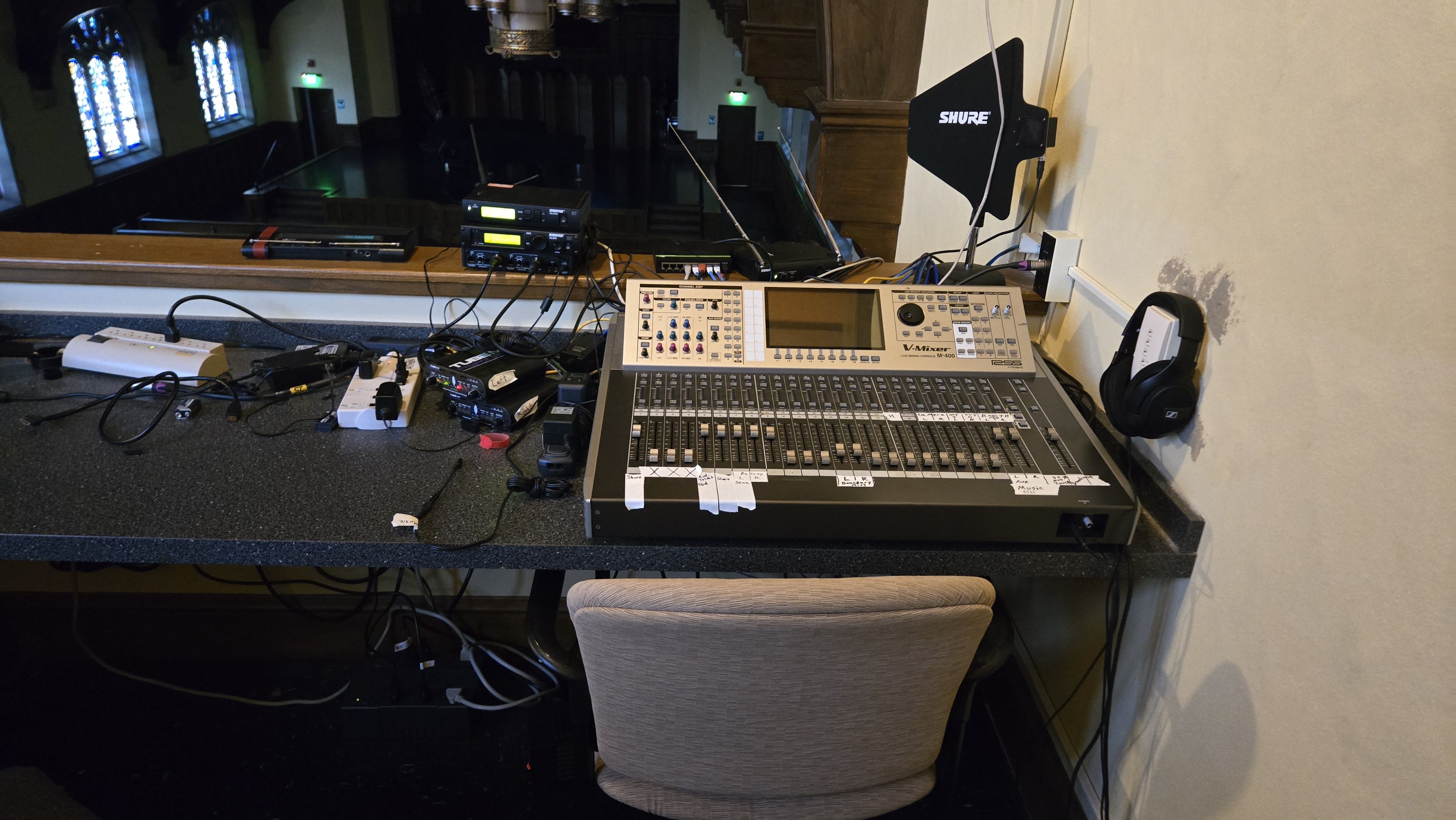
On the left-hand side of the mixer, find a cable with a white piece of tape on it labeled "Music"
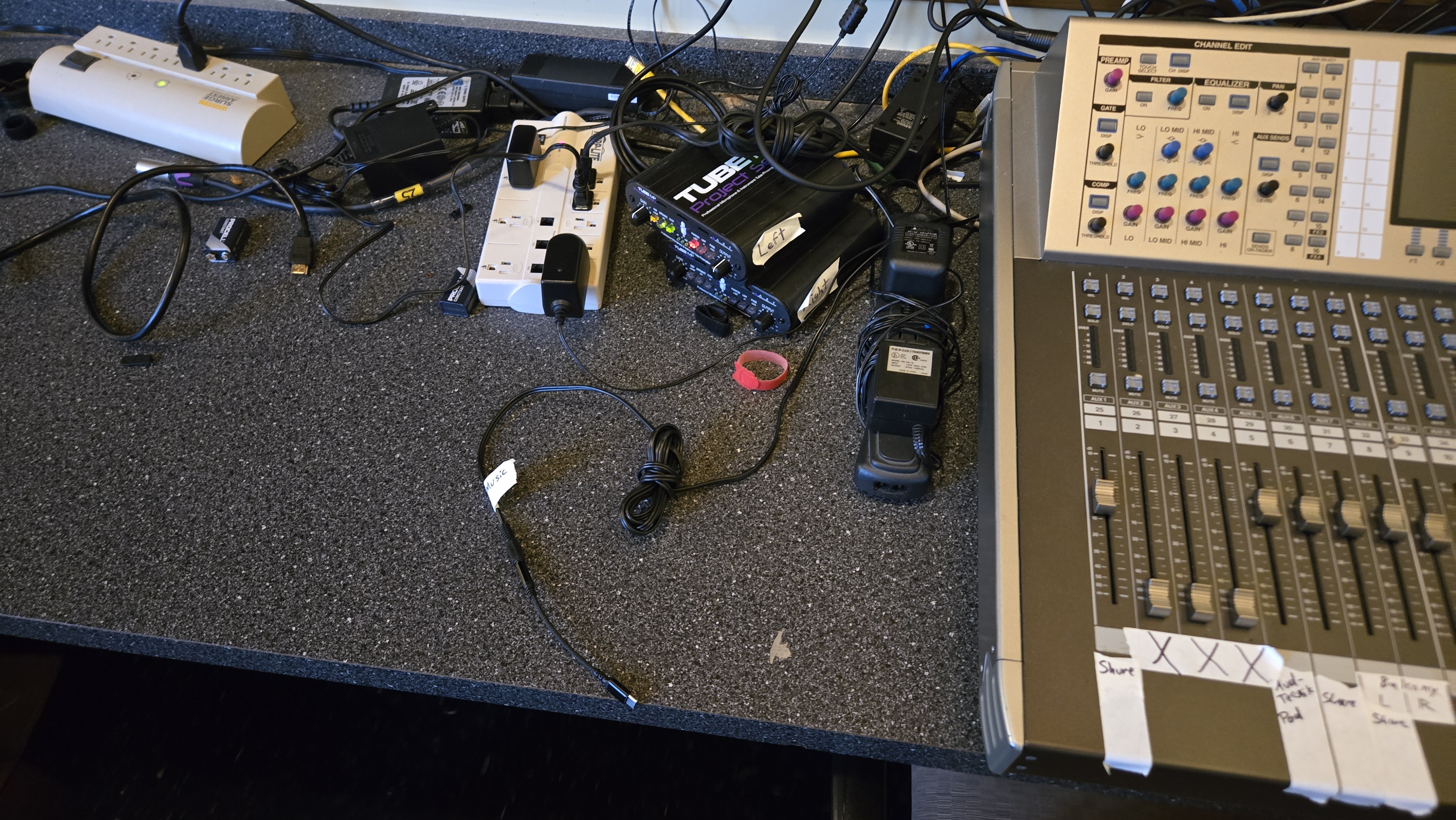
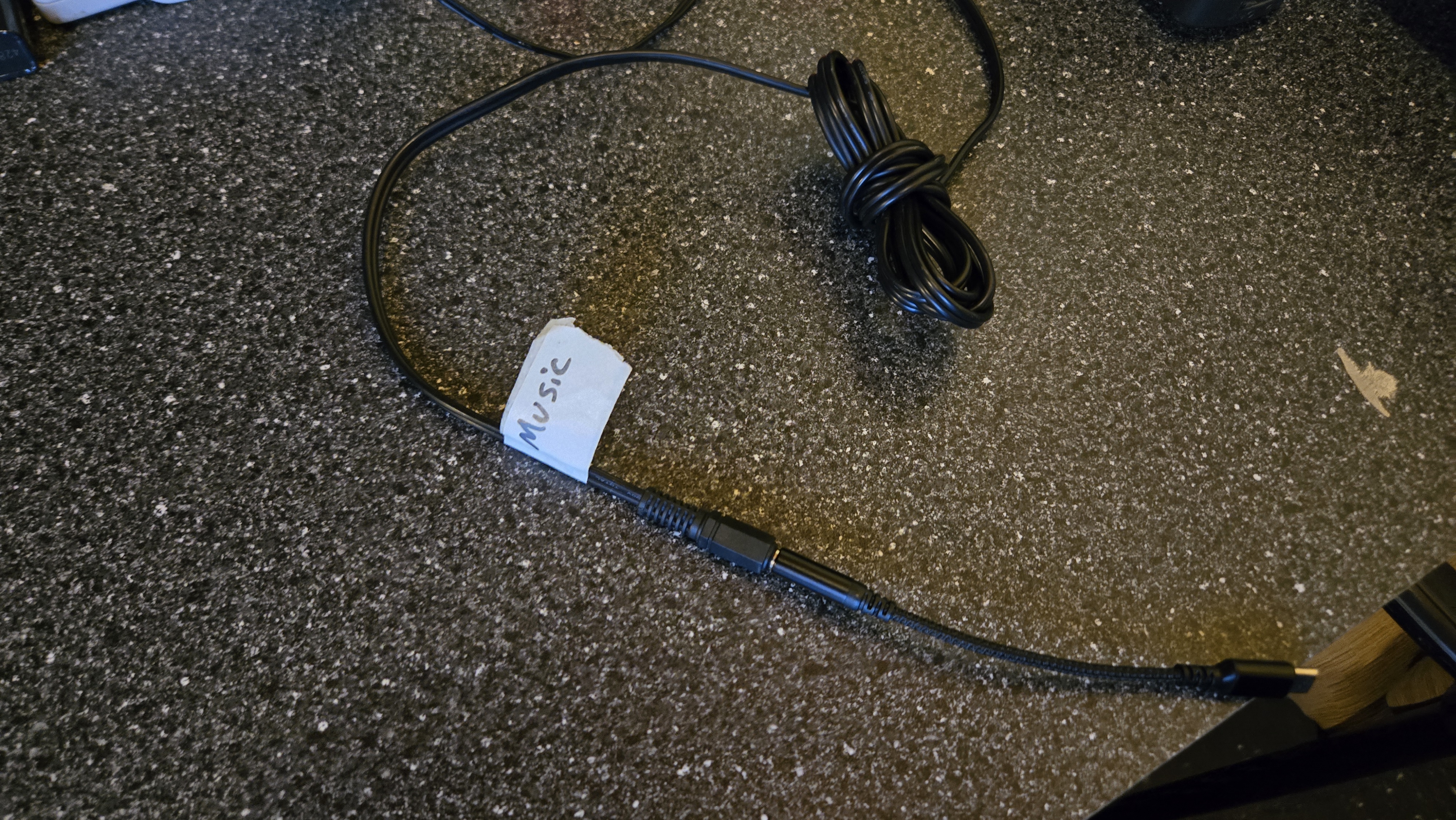
Please note: There should be an adapter connected to the cable that converts a 3.5mm audio plug to a USB-C connection. Depending on your device, you will either use the USB-C connector, or you will need to disconnect the adapter and use the 3.5mm connection.
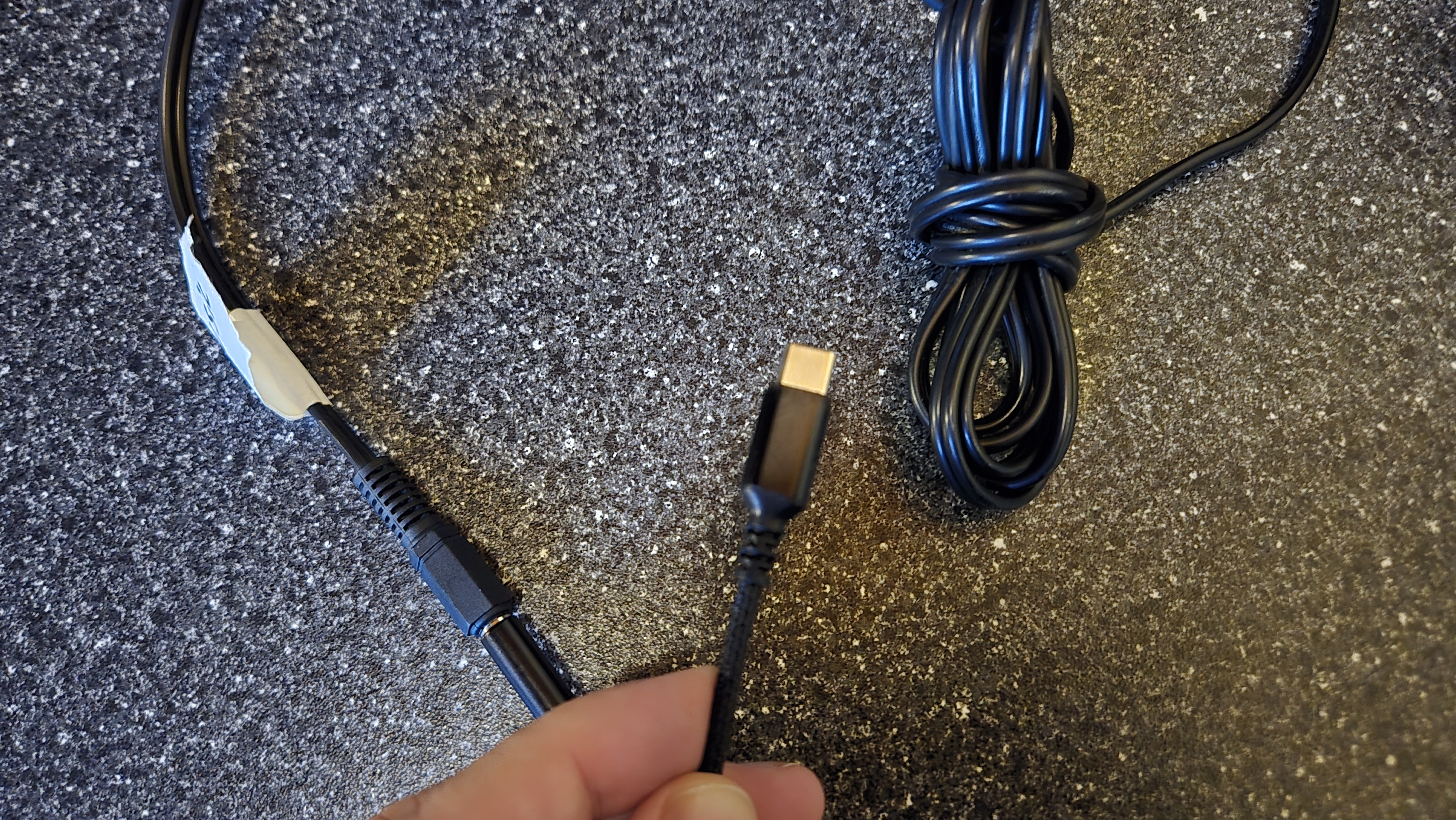
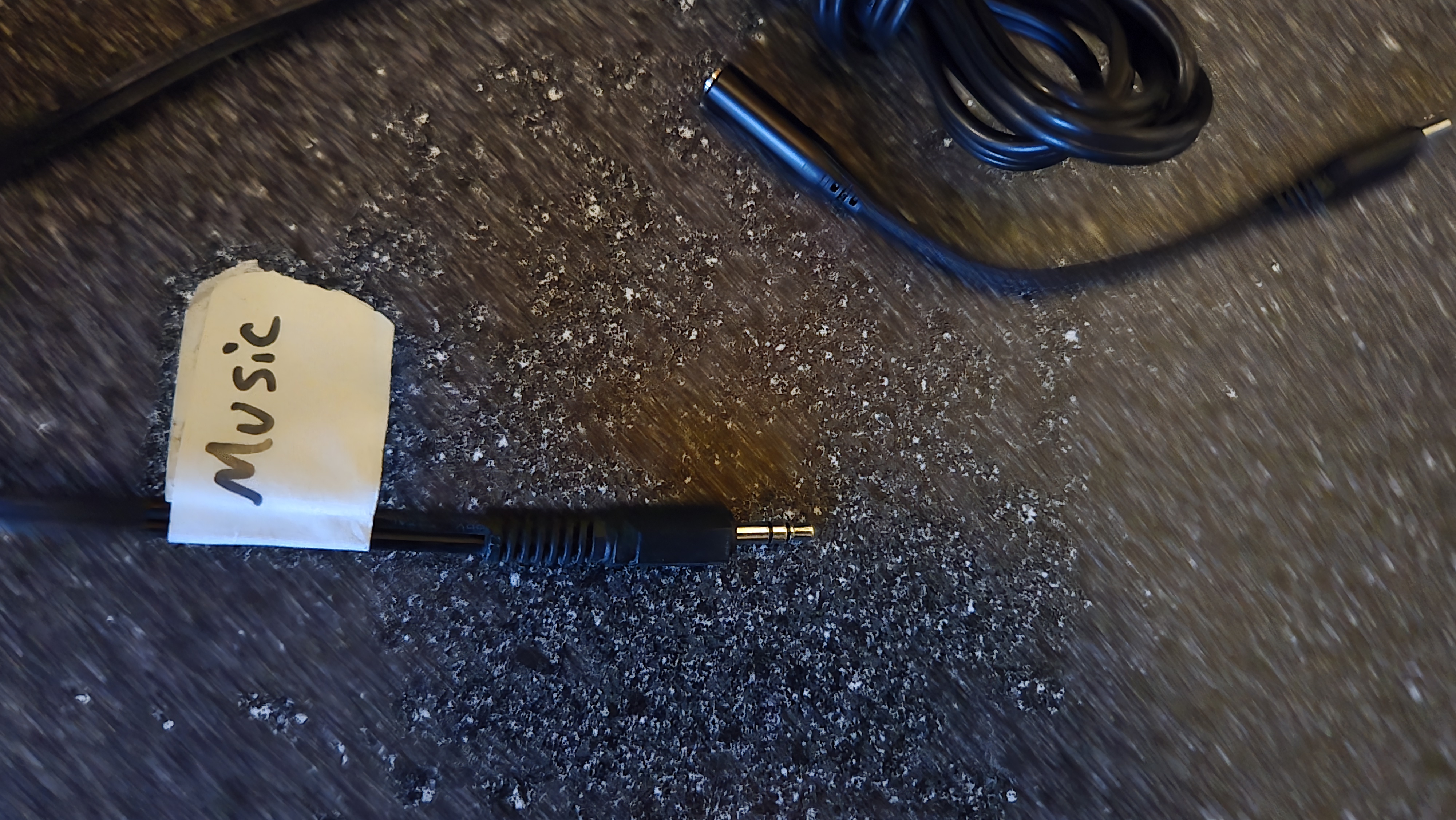
Connect your device accordingly, and choose whatever music application you desire (Spotify, Amazon Music, YouTube, etc.)
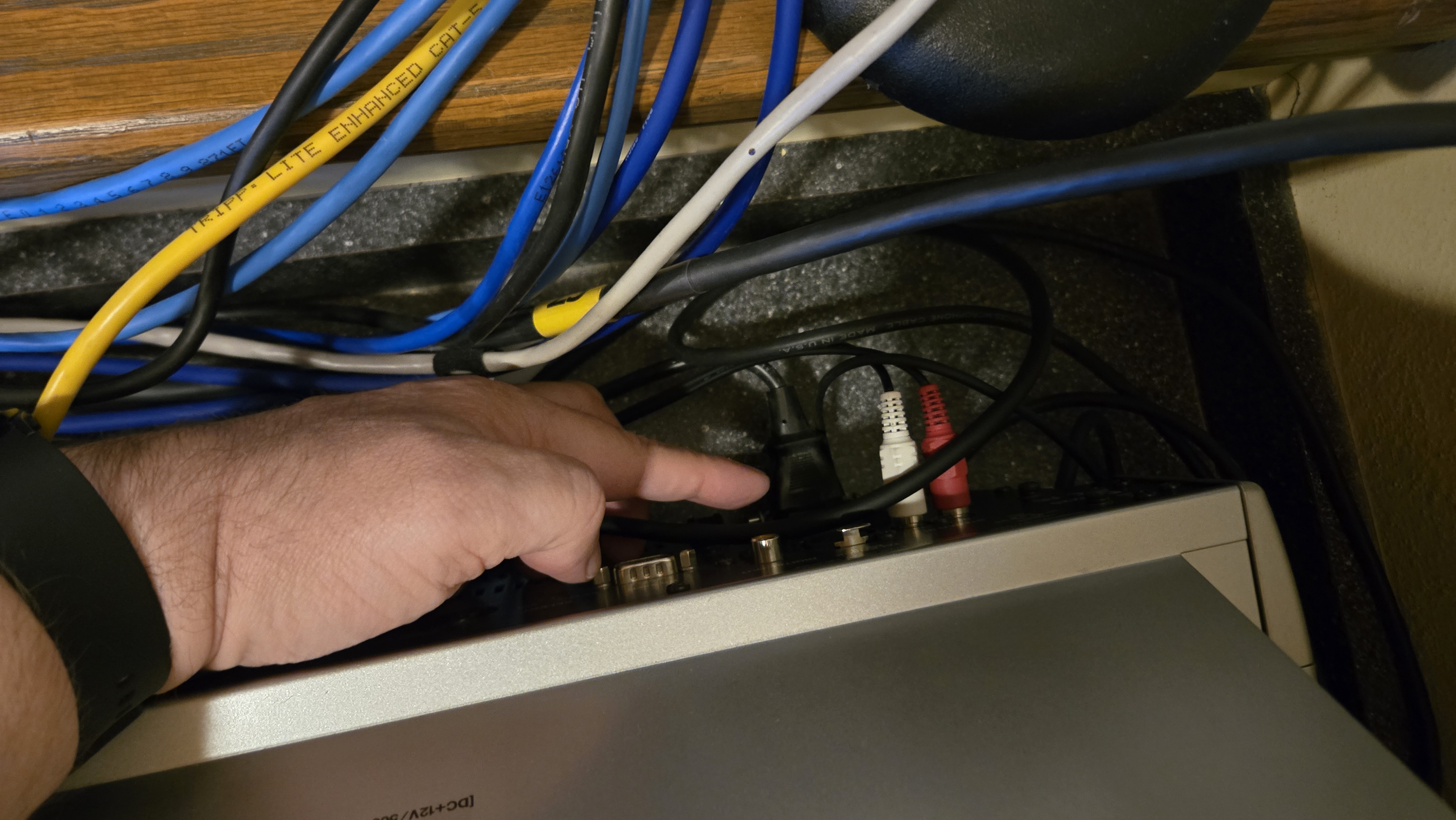
You will need to power on the Mixer. The power switch is on the backside of the device, on the right side. The switch is directly above the power cable and goes to the left/right. Switch it on to power on the device.
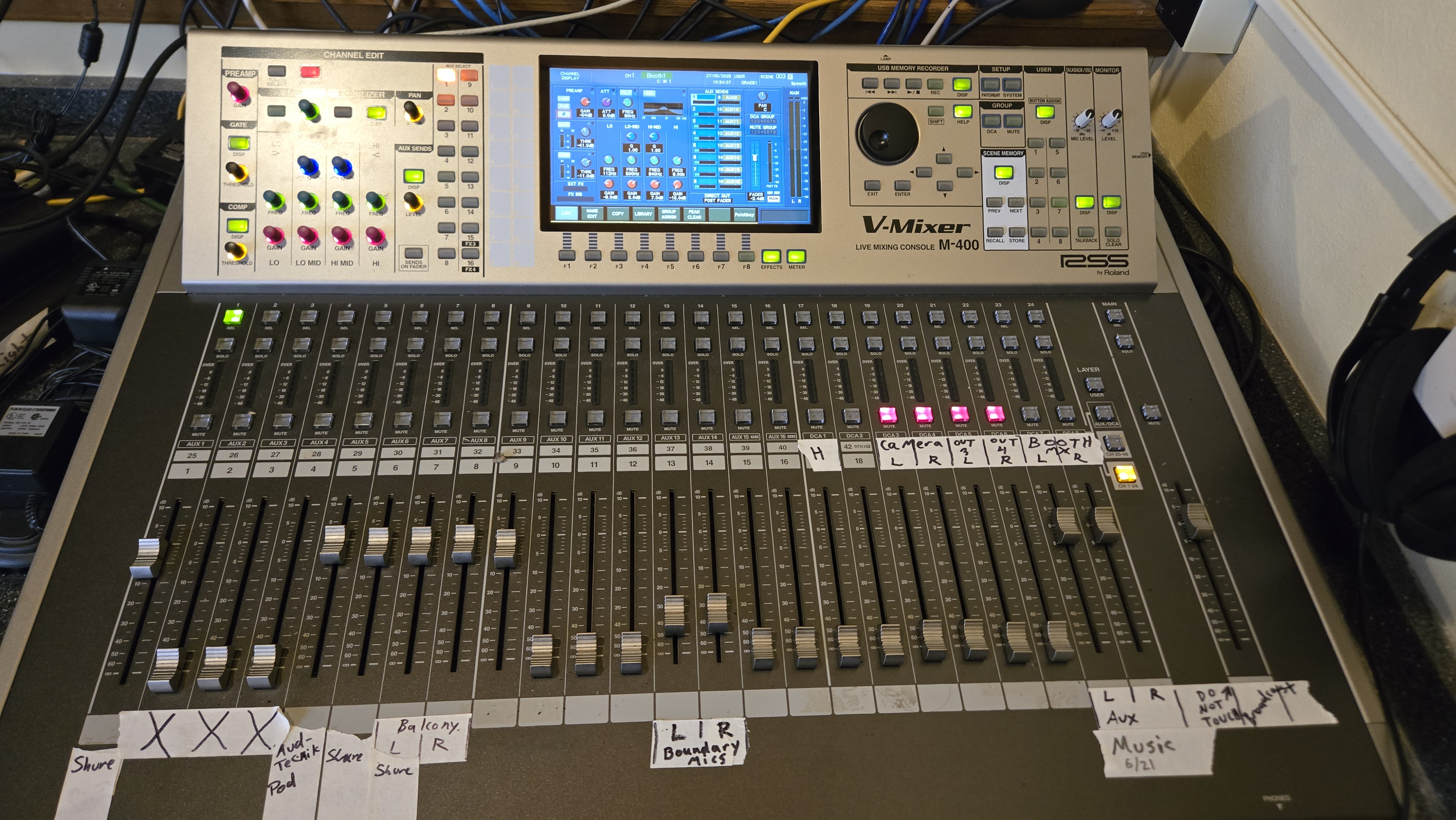
This is what the mixer will look like when it is properly powered on.
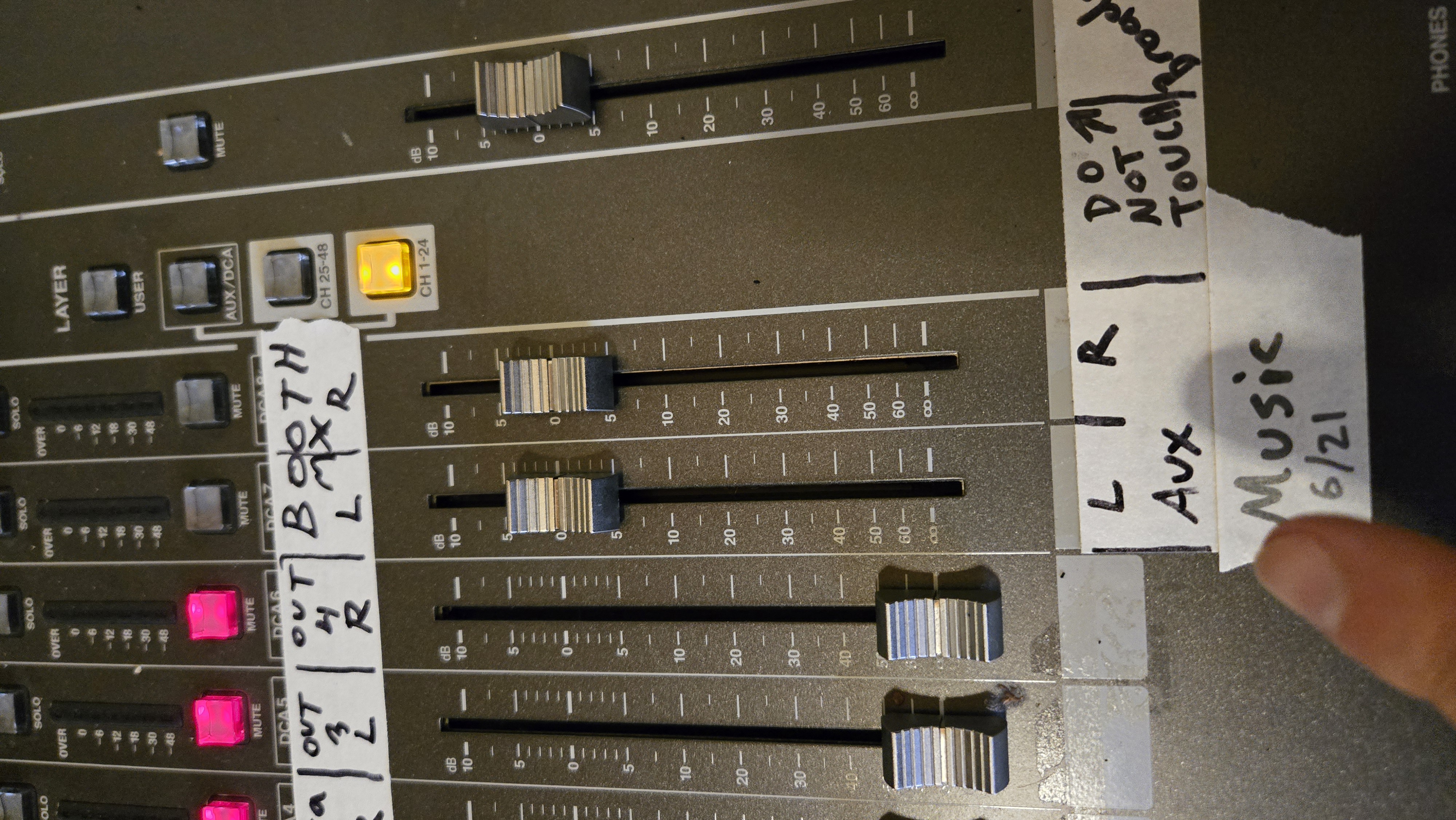
The volume controls for this connection are on the lower right side of the mixing board, labeled "L/R Aux" and "Music 6/21". Sliding these dials up and down will raise or lower the volume.
Tips for best results:
- The ideal volume setting on the mixer is to have the L/R sliders at 0, as pictured above
- Control the volume from your device, not from the mixer. Turn down your music by lowering the volume on your phone/tablet.
- Leave your device flat and still on the table, not holding it in your hand. Movement of the cable while music is playing will often result in pops and hisses that are audible through the speakers.