
This guide will walk you through connecting and playing music from a personal device (such as cell phone, tablet, or laptop) over the speakers in the Chapel.
Before you begin: Bring the device you want to play music from. USB-C and 3.5 mm connections are supported.
1. Find the Mixer
Go upstairs to the Chapel balcony. The mixer is immediately inside the door on your right.
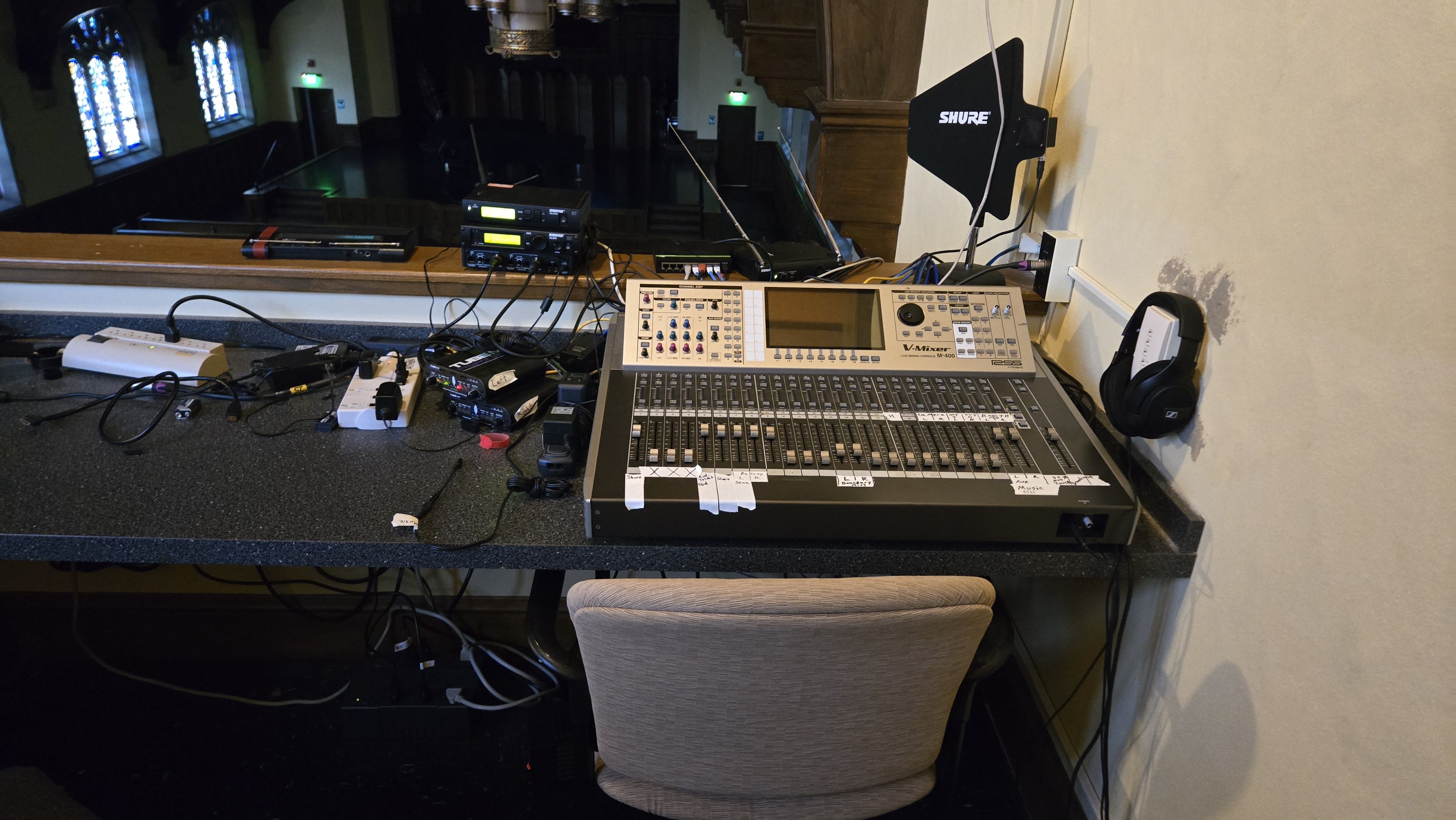
2. Find the Music Cable
On the left side of the mixer, find the cable marked with white tape labeled Music.
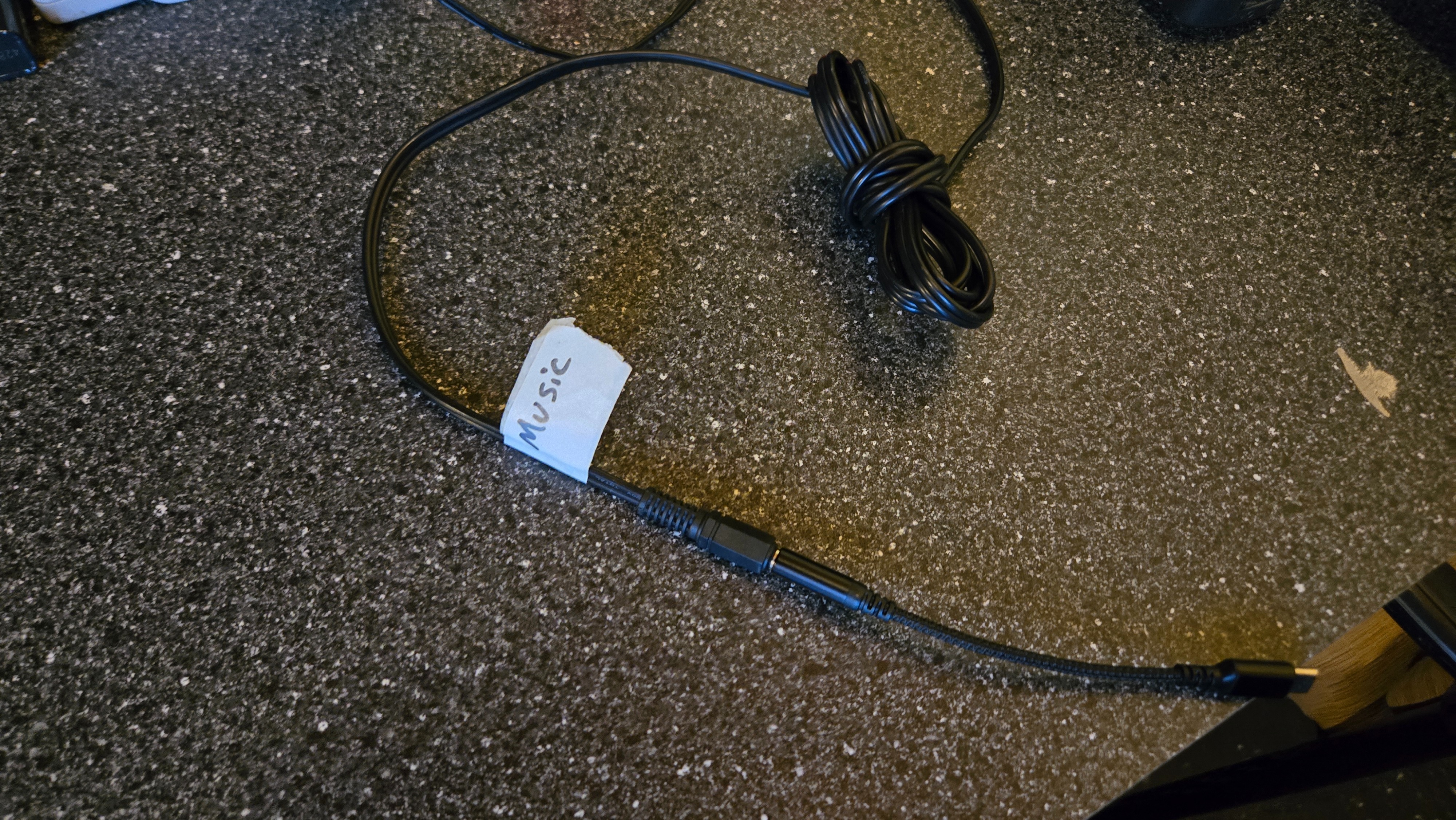
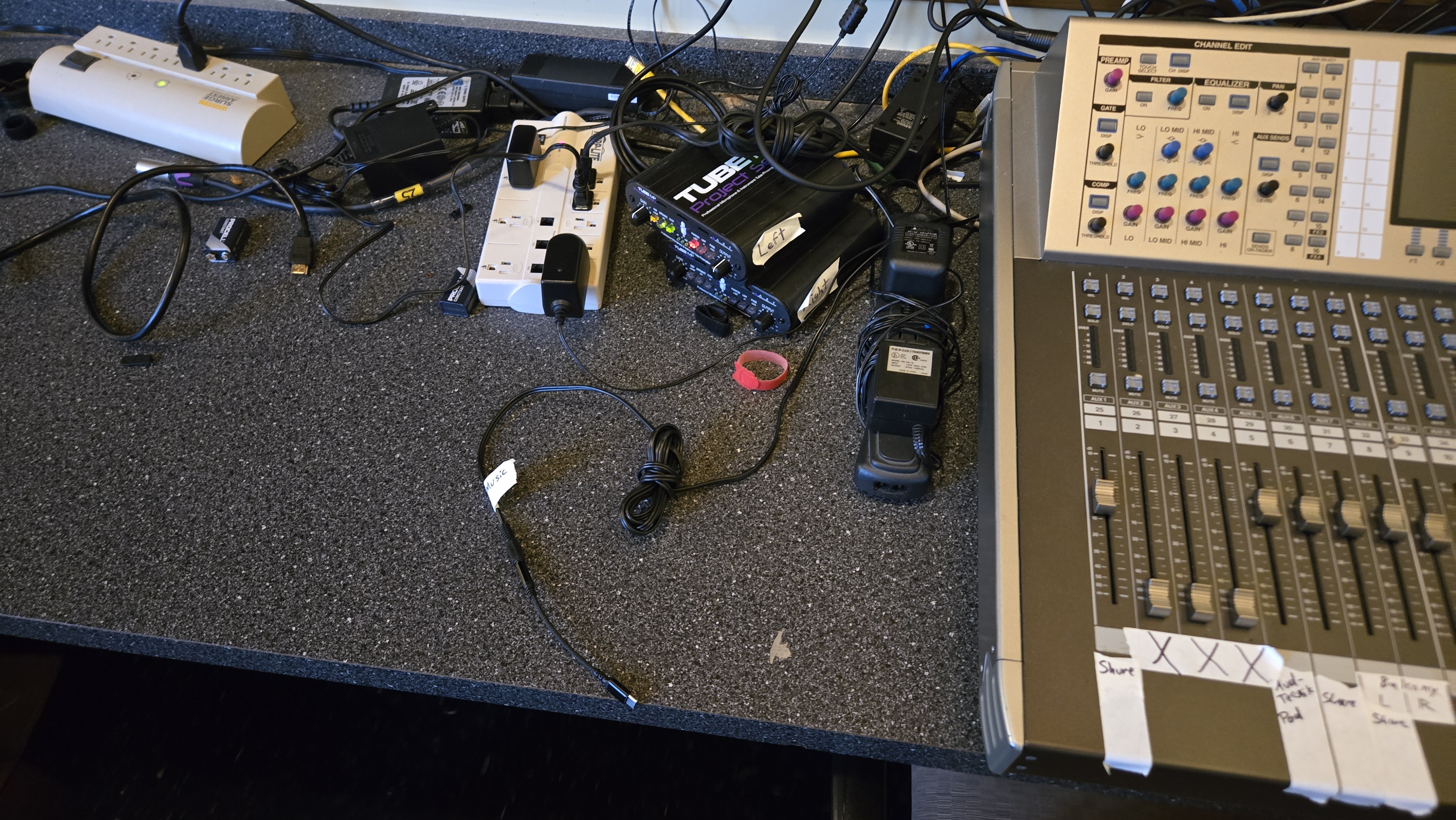
3. Connect your device
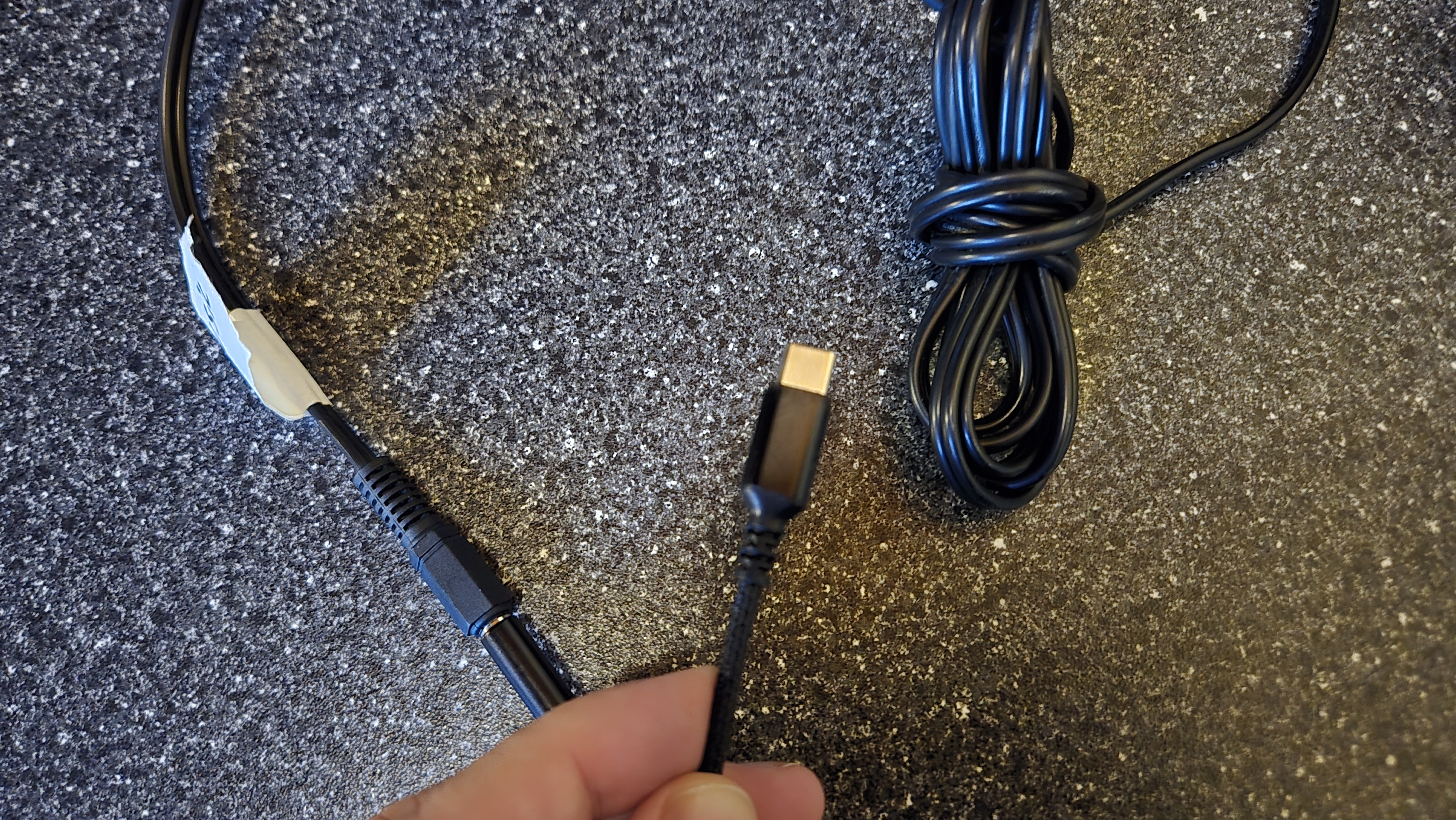
- USB-C: Use the adapter already attached to the Music cable.
- 3.5 mm headphone jack: Remove the USB-C adapter and plug the cable directly into your device.
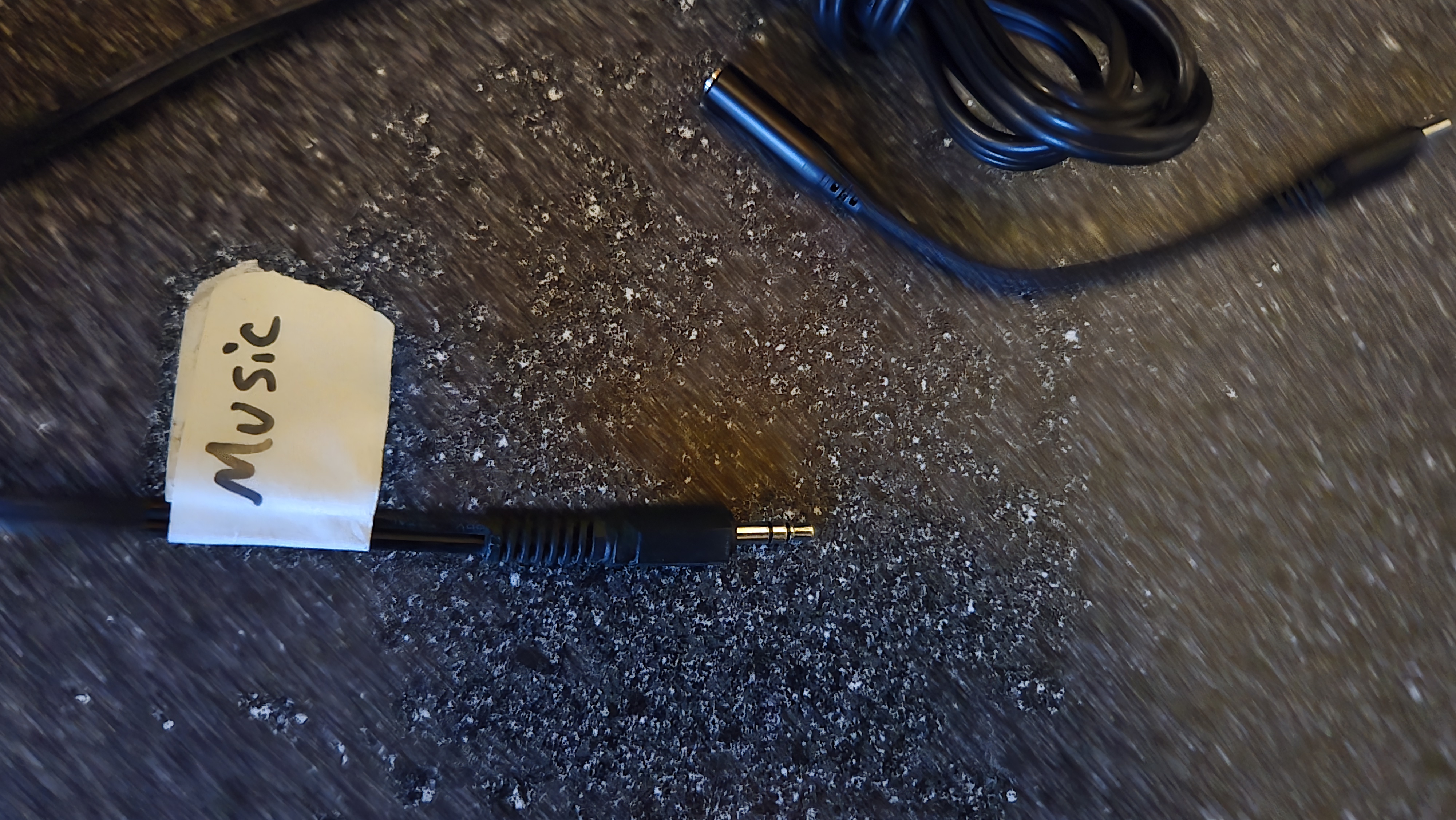
4. Turn on the mixer
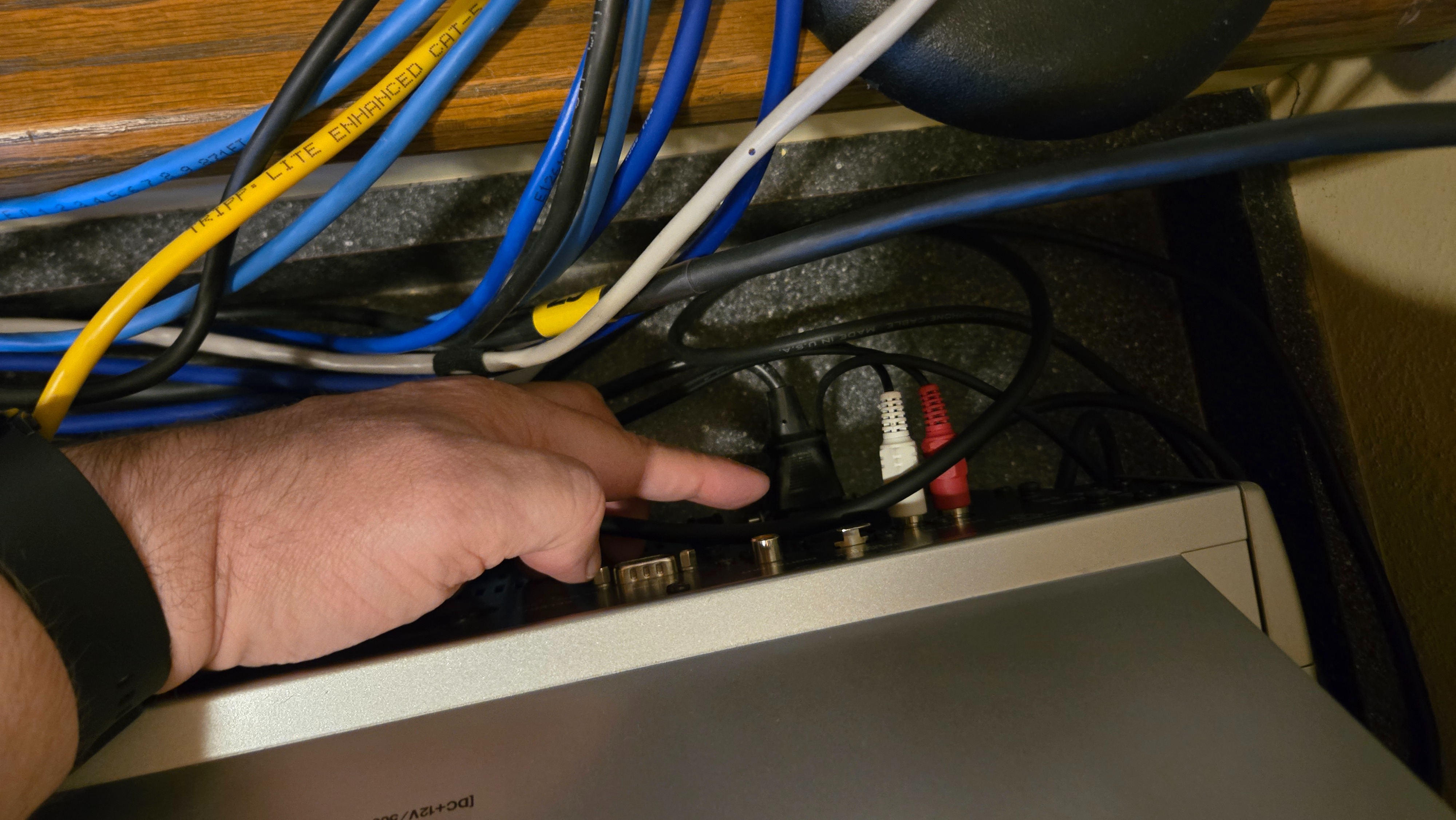
On the back of the mixer, find the power switch directly above the power cable and turn it on.
This is what the mixer will look like when it is properly powered on.
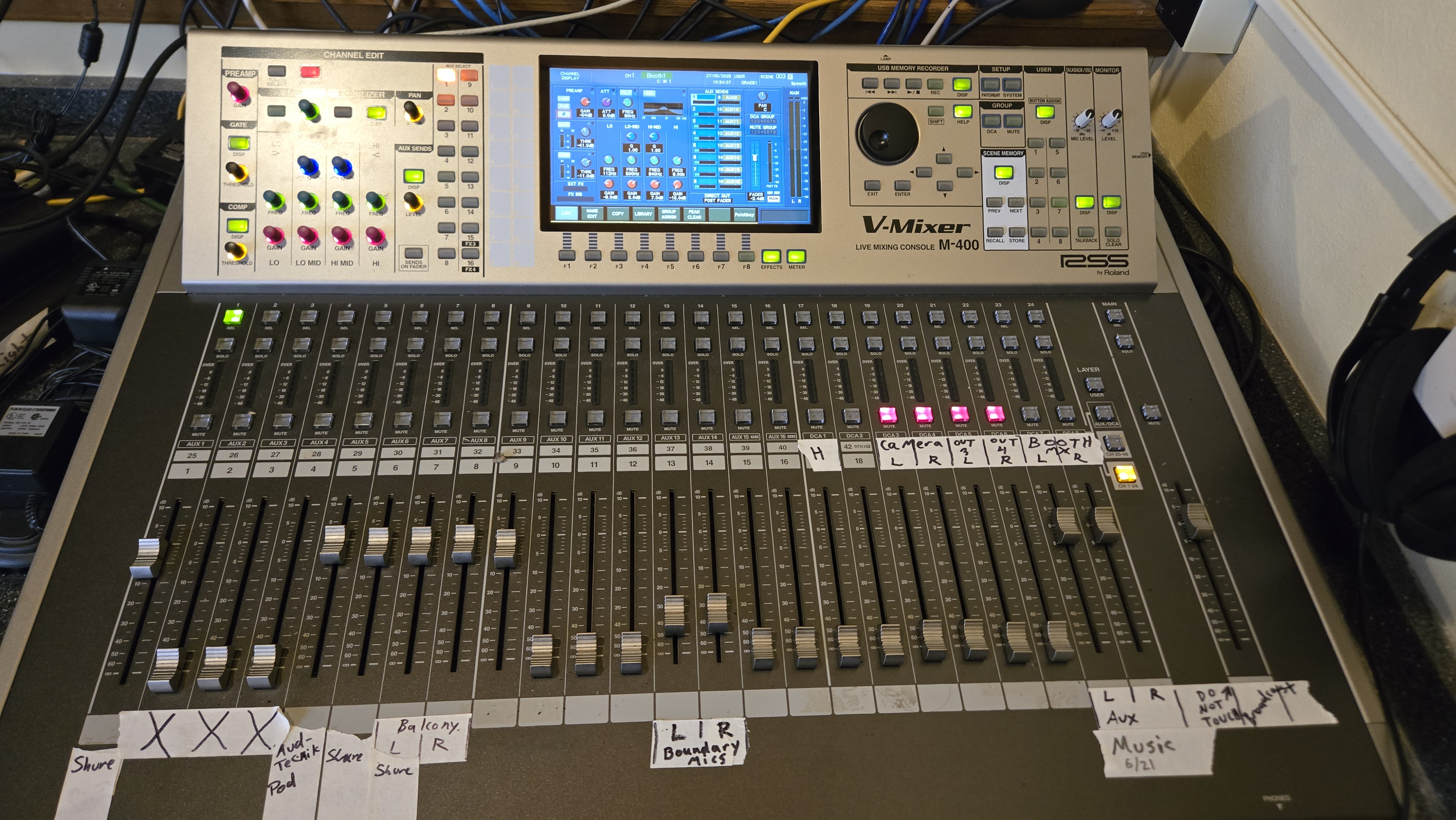
5. Set the mixer volume
Find the L/R Aux and Music 6/21 controls in the lower-right area of the mixer. Set them to the recommended positions shown below.
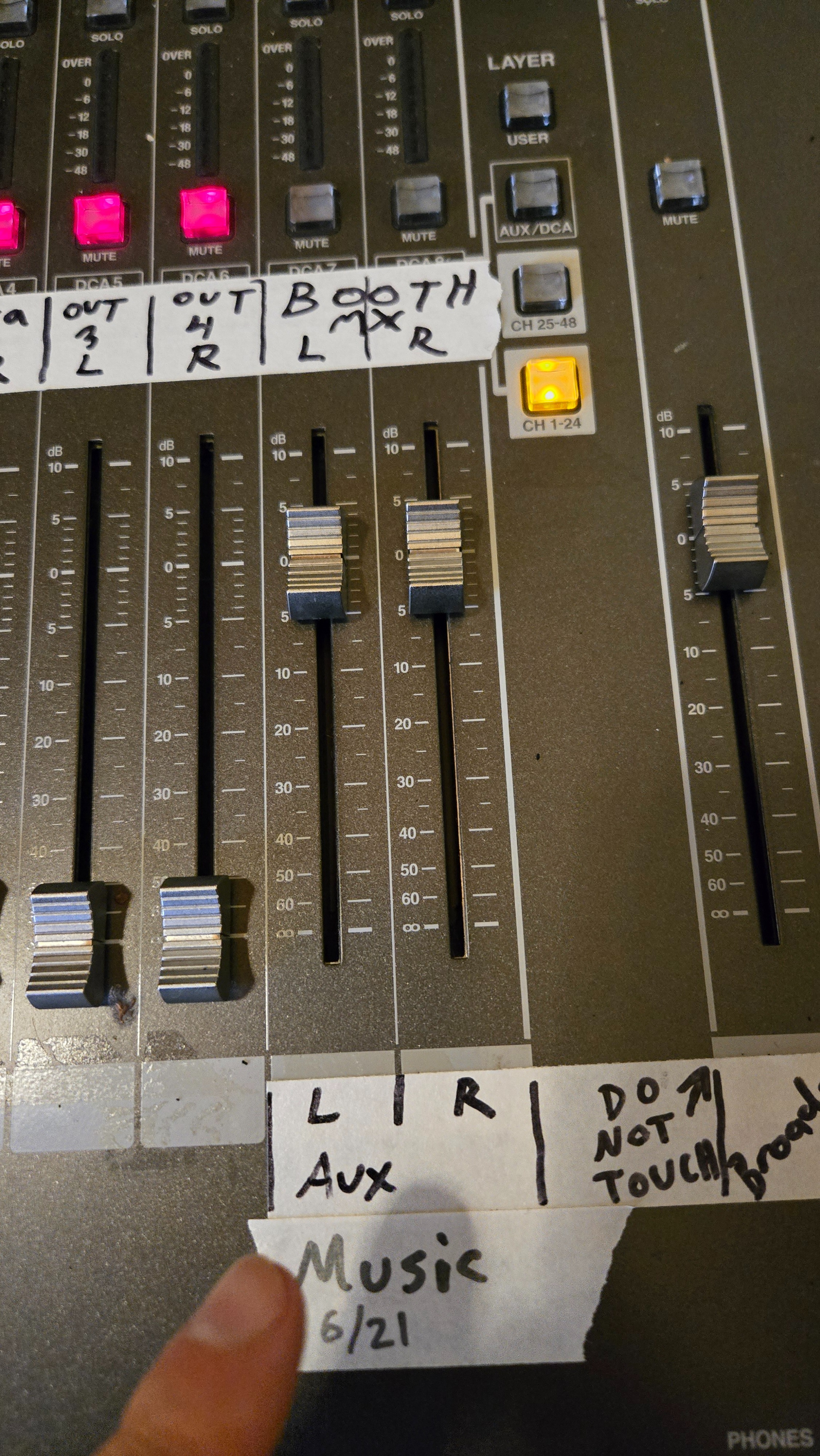
6. Start your music
Open your preferred music app and begin playing. Use your phone, tablet, or laptop to adjust the listening volume rather than changing the mixer settings.
For best sound: Leave your device flat on the table while music is playing. Moving the cable can cause popping or hissing through the Chapel speakers.