Approving an Email for Student Distribution Groups
- A message will arrive in your inbox when a new email requiring moderation is required. The message will appear to be from the list that email is being sent to, and the subject will contain the words “Message Pending” along with the name of the group and other technical information.

- Opening the message that requires moderation, you’ll see information that is useful for quick moderation. Called out are the Attached Message for moderation, the group it is being sent to, and where you can approve or reject the message.
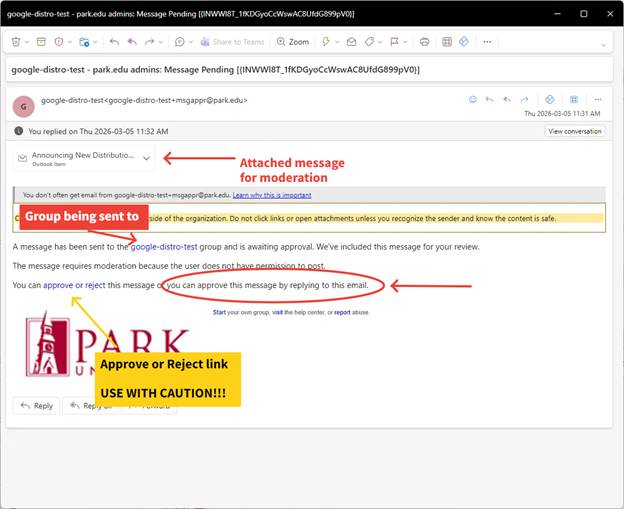
- The outgoing message is attached to the email for you to review if necessary.
- When you open this attachment, amongst all of the technical information embedded in the message you will see the original subject, sender, targeted list, and the body of the message.
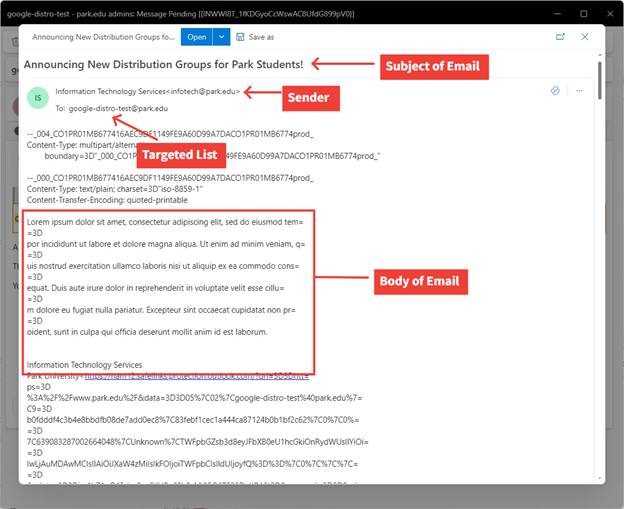
- When you open this attachment, amongst all of the technical information embedded in the message you will see the original subject, sender, targeted list, and the body of the message.
- The outgoing message is attached to the email for you to review if necessary.
- To approve the message to go out, simply reply to the email that you received. The reply can be totally blank, any reply will be treated as an approval and the message will deliver.
- You can also click on the “Approve or Reject” link at the bottom of the moderation email to approve
Rejecting an Email for Student Distribution Groups
- Nothing is required to reject a message that shouldn’t go out, you can simply not reply or not click the link to Approve and the message will not go out.
- Reach out directly, if necessary, to tell the sender why they need to re-send their message
- Clicking on the “Approve or Reject” link will often result in accidental auto-approval by the Google system.
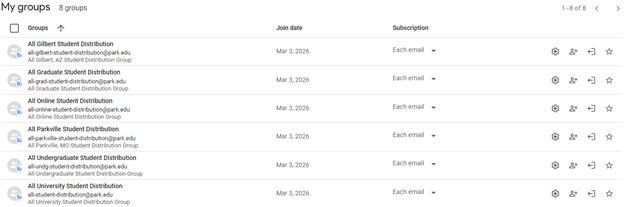
- If you must Reject a message, go to https://groups.google.com/ and be sure you are signed in with your Park University account (ID Number @ park.edu)
- Click on the name of the group you need to moderate
- On the left, under Conversations, click on Pending.
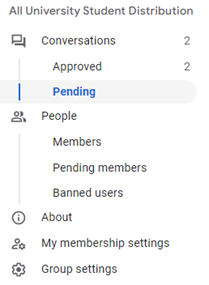
- You will see any Pending messages for this group here. Find the message you want to moderate, and click the button corresponding to your decision on the far right side (X for reject)

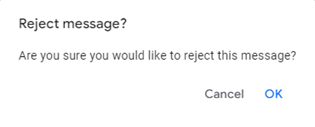
Then click OK to complete the step