If you need assistance with Sage Vantage in addition to the following Setup Instructions, you may schedule a meeting with a Sage representative at this Calendly link.
Instructors new to teaching with Sage Vantage are required to register for a Sage Vantage Instructor account here.
Setup Instructions
Click on any Sage Vantage assignment in your Canvas course. On the Sage Copy Course Selection page, select "Create a new Vantage course to Pair with your LMS Course." 
Name your course with the course number, title, and term. Enter the course start and end dates. Set the end date to a date which is after end of term to allow for late submissions. Click "Submit." 
If you have not logged onto Sage via Canvas previously, you will see a screen which asks you to log in. If you have an existing Sage account under your Park email address, login with those credentials. If you don't yet have a Sage account, click the "Register" button under the Instructor heading. 
Once the course has been created, click the "Assignments" tab and set the due dates.

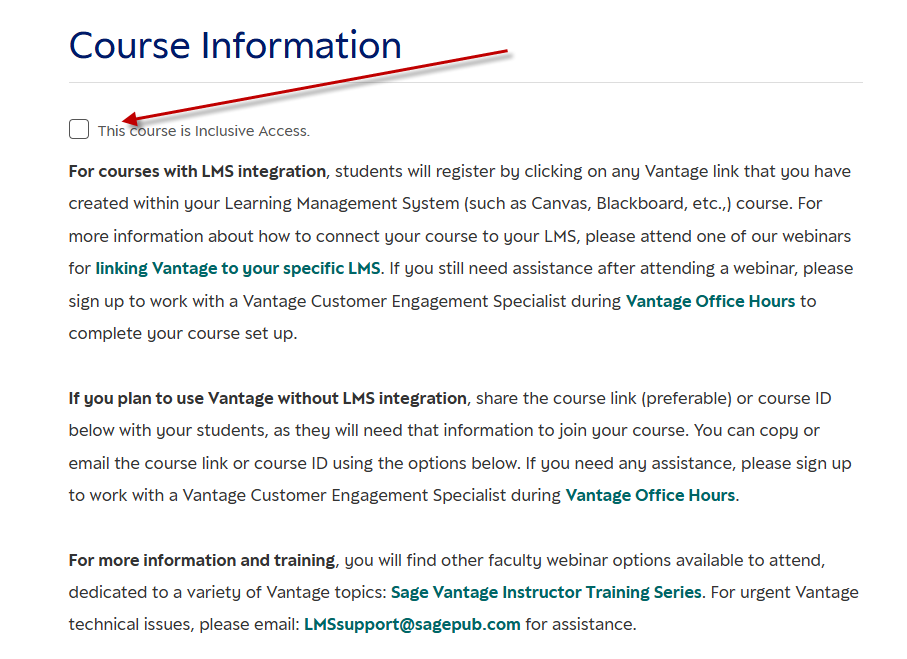
Please now check to ensure that this new course in Sage Vantage is setup with Inclusive Access.
Inclusive Access removes the paywall so that students can enter the Sage Vantage course.
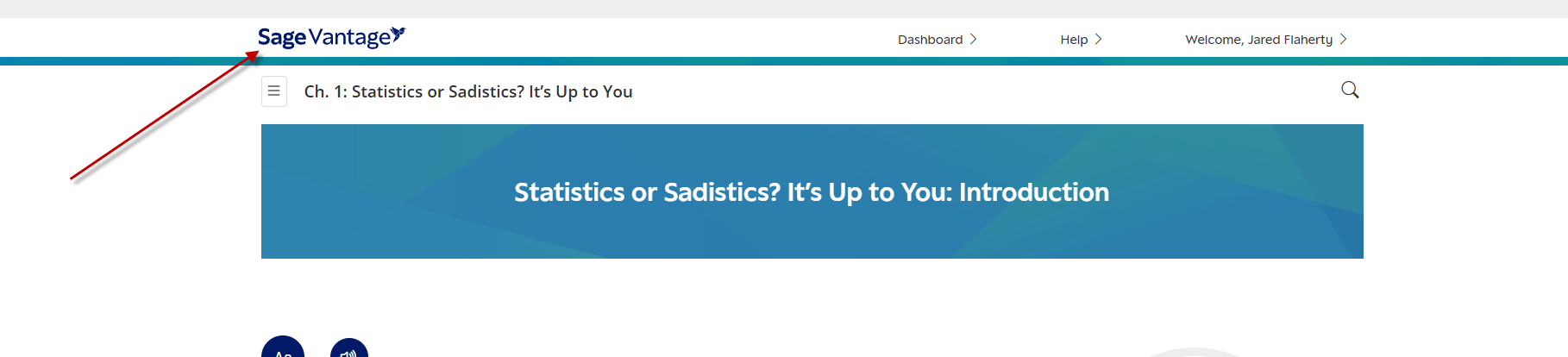
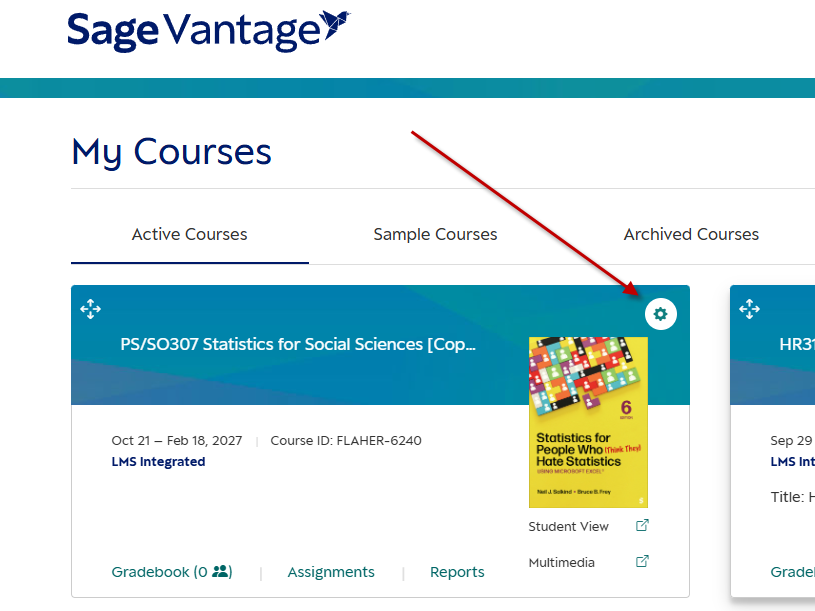
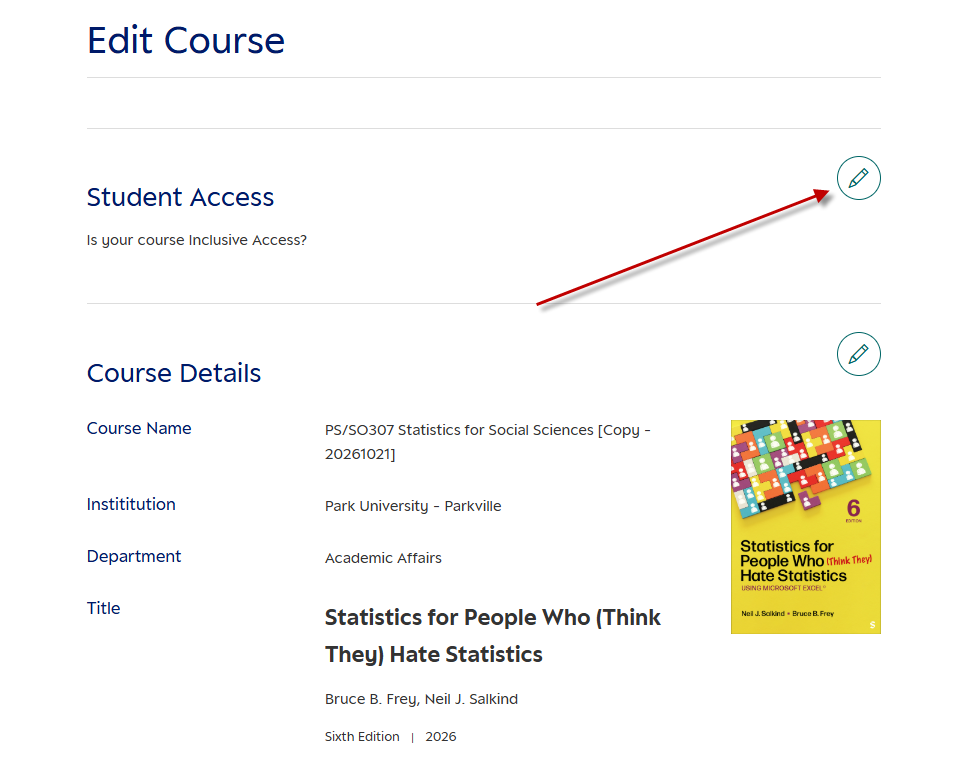
You will go to your Sage Vantage Dashboard by clicking on Sage Vantage, then click on the gear icon to access the settings of your Sage Vantage course, click on the pencil icon for Student Access and then check the Inclusive Access option.